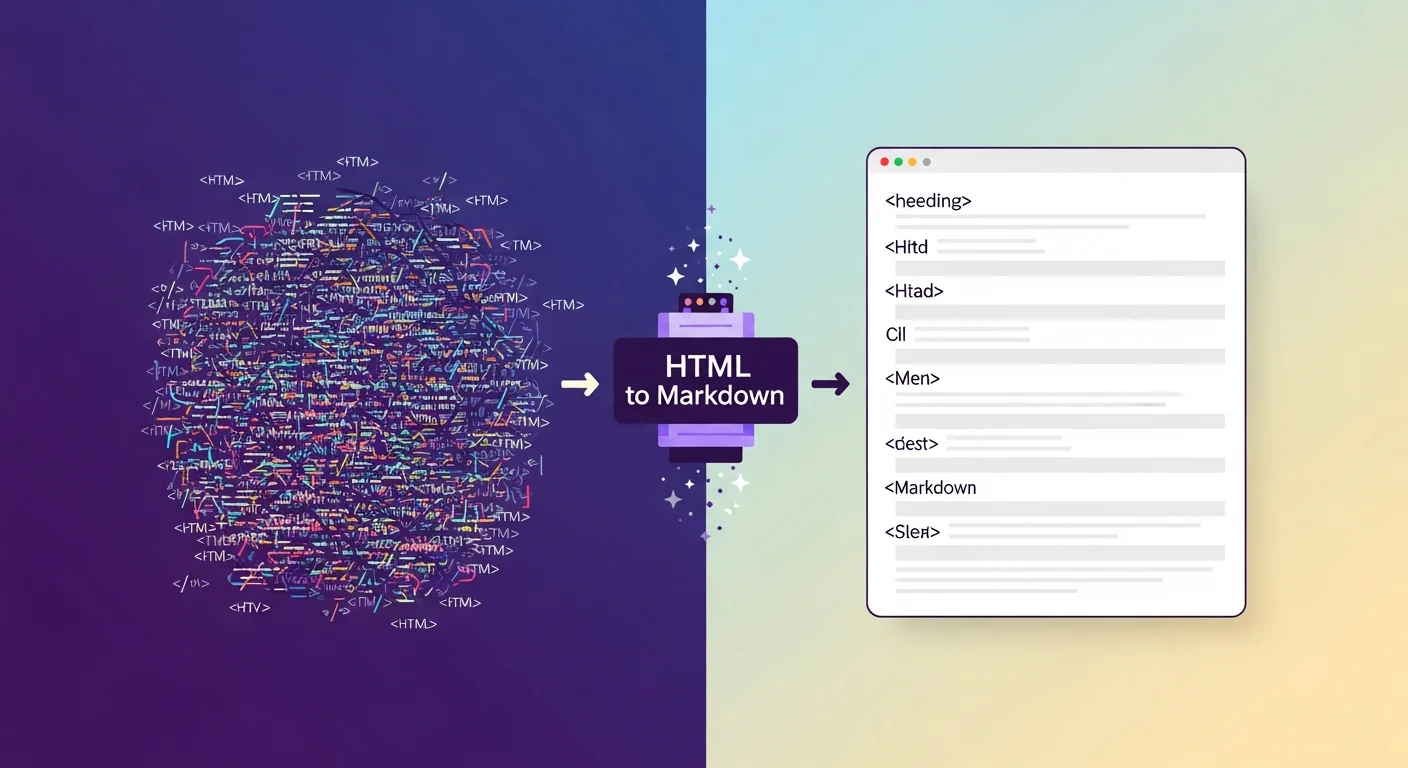
When you copy content from a website, export from a CMS, or receive HTML from a developer, you often end up with dense, tag-heavy markup that's painful to read and edit. Converting that HTML to Markdown gives you clean, portable text that's easy to edit in any text editor, version-control friendly, and readable without rendering.
Convert HTML to Markdown
HTML to Markdown
Convert HTML source code back into clean, readable Markdown syntax instantly.
Why Convert HTML to Markdown?
For Writers and Editors
HTML is designed for browsers, not humans. <p><strong>This is bold</strong> and <em>this is italic</em></p> is far harder to read and edit than **This is bold** and *this is italic*. Markdown keeps the semantic meaning while removing the visual noise.
For Content Migration
Moving content between CMSs (WordPress to Ghost, Contentful to Sanity) often involves HTML content that needs to become Markdown for the new platform.
For Documentation
Technical documentation lives longest when it's in Markdown — version-controlled in git, renderable anywhere, editable in any text editor. Converting HTML docs to Markdown makes them future-proof.
For AI and LLM Inputs
Large language models process Markdown more efficiently than HTML. Converting web-scraped HTML content to Markdown before feeding it to AI tools typically produces better outputs.
HTML to Markdown Conversion Reference
| HTML | Markdown |
|---|---|
<h1>Heading</h1> |
# Heading |
<h2>Heading</h2> |
## Heading |
<strong>bold</strong> |
**bold** |
<em>italic</em> |
*italic* |
<code>inline</code> |
`inline` |
<a href="url">text</a> |
[text](url) |
<img src="img.png" alt="desc"> |
 |
<blockquote>quote</blockquote> |
> quote |
<hr> |
--- |
<ul><li>item</li></ul> |
- item |
<ol><li>item</li></ol> |
1. item |
<pre><code>block</code></pre> |
```\nblock\n``` |
<del>text</del> |
~~text~~ |
<br> |
Two trailing spaces or blank line |
What Doesn't Convert Cleanly
Not every HTML element has a Markdown equivalent. How converters handle these elements varies:
| HTML Element | Markdown Support | Typical Handling |
|---|---|---|
<table> |
GFM only | Converted to GFM table or preserved as HTML |
<div>, <span> |
None | Stripped (content preserved) or kept as raw HTML |
<figure>, <figcaption> |
None | Caption may be lost or appended as text |
<input type="checkbox"> |
GFM task lists | Converted to - [ ] or - [x] |
<iframe> |
None | Removed or kept as raw HTML embed |
| CSS classes and IDs | None | Stripped entirely |
| Inline styles | None | Stripped entirely |
| HTML entities | None | Converted to Unicode characters |
Handling Messy HTML
Real-world HTML from websites and CMSs is often badly structured. Common issues and how to address them:
Deeply nested divs: HTML-to-Markdown converters strip non-semantic tags like <div> and extract the text content. Multiple nested divs usually collapse cleanly.
Redundant spans: <span style="color:red">text</span> — the inline style is dropped and you get just the text. No Markdown equivalent exists for arbitrary colour.
Word processor HTML: If the HTML came from a Word or Google Docs export, it's typically extremely bloated with class names, namespaces, and redundant tags. The converter extracts meaningful structure; the rest is discarded.
Comments and scripts: <!-- comments --> and <script> blocks are typically stripped entirely, which is the correct behaviour.
Practical Workflow: Blog Post Migration
A typical HTML-to-Markdown migration workflow:
- Export your existing blog posts as HTML (most CMSs support this)
- Convert each post's body HTML to Markdown
- Review the output — check headings, links, and images
- Fix any elements that didn't convert cleanly (tables, complex embeds)
- Add frontmatter (title, date, slug) as required by your target platform
- Import into the new CMS or static site generator
Markdown Compatibility Across Platforms
Once converted, your Markdown will work across:
| Platform | Markdown Support |
|---|---|
| GitHub / GitLab | GFM (tables, task lists, strikethrough) |
| Ghost CMS | CommonMark + some GFM |
| Notion | Markdown import (partial) |
| Obsidian | Full Markdown + extensions |
| VS Code | Full preview |
| Hugo / Jekyll | CommonMark + front matter |
| Slack / Discord | Partial (bold, italic, code) |
Privacy Note
FluxToolkit's HTML-to-Markdown converter processes your HTML entirely in your browser. Your content is never transmitted to our servers — conversion happens locally using client-side JavaScript.
Frequently Asked Questions
Will the converter preserve my links?
Yes. <a href="url">text</a> becomes [text](url) reliably. Relative URLs are preserved as-is.
What happens to images in the HTML?
<img src="image.jpg" alt="description"> becomes . The src and alt attributes are preserved; other attributes (width, height, class) are dropped.
Can I convert a full webpage's HTML to Markdown?
Yes, but the output will include navigation, footers, sidebars, and other non-content elements. For best results, extract just the article body HTML before converting.
Does conversion lose any content?
Content within semantic tags (headings, paragraphs, lists, links) is preserved. Content within purely presentational tags (divs, spans with no semantic meaning) has its tags stripped but text preserved. Inline styles are dropped. <script> and <style> blocks are removed.
Does FluxToolkit store the HTML I convert?
No. Processing is client-side. Your content never leaves your device.
Related Articles

Markdown to HTML Converter: How It Works & When to Use It (Free, No Login)

Markdown for Writers and Developers: A Practical Guide to Web Writing and HTML Migrations

How to Use a Diff Checker for Code Reviews, Document Edits, and Contract Comparisons

Word Counter Online: Check Word Count, Character Count, and Reading Time Instantly