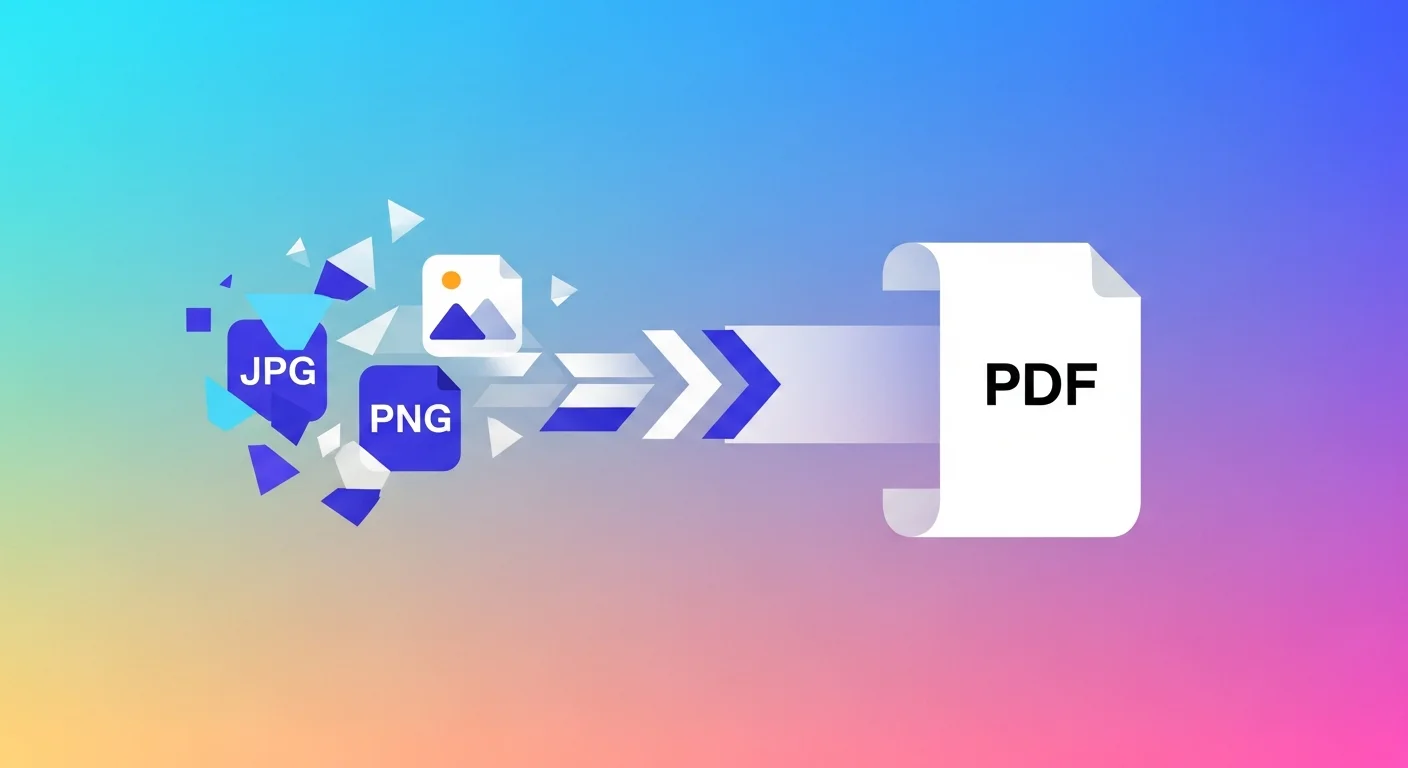
You've taken a photo of a receipt. A screenshot of a contract. A set of product images that need to go to a client. A scan of a handwritten form. In each case, you need these as a PDF — not a loose pile of image files.
Converting images to PDF is one of the most searched document tasks online, and for good reason: PDF is the universal format for sharing, printing, archiving, and signing documents.
Convert Images to PDF
Why Convert Images to PDF?
Universal compatibility. PDFs look identical on every device and operating system. Image files render differently depending on the viewer — PDFs don't.
Multi-page consolidation. If you have 5 photos of a multi-page document, combining them into a single PDF creates one shareable, printable file instead of five separate attachments.
Printability. PDFs print exactly as they appear on screen. Images printed directly from a viewer often have scaling, margin, or orientation issues.
Form submission requirements. Most official forms, visa applications, job portals, and government systems accept PDF — not raw JPEG or PNG files.
Archiving. PDFs are the archival standard for documents. JPEG images degrade with each resave; PDFs don't.
Common Image-to-PDF Scenarios
| Scenario | What to Do |
|---|---|
| Receipt for expense report | Photograph → PDF → attach to expense claim |
| Signed paper contract | Scan/photo → PDF → email to other party |
| Multi-page form | Photo each page → combine into single PDF |
| Product images for client | Export JPGs → single PDF with all images |
| Whiteboard notes from meeting | Photo → PDF → share in Slack or email |
| Proof of address documents | Photo utility bills → PDF → upload to portal |
What Affects PDF Quality
Source image resolution. The PDF quality is limited by the image quality. A blurry 480p photo produces a blurry PDF. For document legibility, aim for at least 150–200 DPI; for print quality, 300 DPI or higher.
Color mode. Full-color images produce larger PDFs. For text-heavy documents (forms, contracts, handwritten notes), converting to grayscale before creating the PDF reduces file size significantly.
Compression settings. Some converters apply heavy JPEG compression to the embedded images, reducing quality. Others embed images at full quality, producing larger files. Choose based on your priority — small file size vs. maximum clarity.
Image-to-PDF vs Scanning an App
Smartphone scanning apps (like Adobe Scan, Microsoft Lens, or Apple's built-in document scanner) also produce PDFs from photos, with one key advantage: they apply perspective correction and brightness adjustment automatically.
For casual document capture, a scanning app is convenient. For images that are already clean (product photos, screenshots, exported graphics), a direct image-to-PDF converter like FluxToolkit is faster and doesn't require installing an app.
Privacy: Document Photos Are Sensitive
The images you're converting to PDF are often sensitive documents — financial records, identity documents, contracts, medical records. When you use an online converter that uploads files:
- Your document photo travels across the internet to a remote server
- The server processes and stores it temporarily (sometimes longer)
- You have no visibility into what happens to it
This matters across jurisdictions:
- EU (GDPR): Identity documents, financial records, and health information are protected personal data. Uploading to unverified processors requires lawful basis.
- India (DPDP Act): Sensitive personal data including financial and health documents must be handled with appropriate safeguards.
- US (state privacy laws): An increasing number of states have data privacy laws that restrict processing personal document data.
FluxToolkit's image-to-PDF converter uses the browser's Canvas API and jsPDF library, running entirely in your browser. Your images never leave your device.
Frequently Asked Questions
Can I combine multiple images into one PDF?
Yes — most converters including FluxToolkit allow you to select multiple images and arrange them as pages in a single PDF document.
What image formats can be converted to PDF?
JPEG, PNG, WebP, and GIF are all supported by most converters. For best quality, use PNG (lossless) when possible.
Will the PDF be searchable?
No — image-to-PDF creates a PDF where the content is an embedded image, not selectable text. To make a scanned document searchable, you need OCR (see our Image to Text guide) to extract the text layer first.
What's the maximum image size I can convert?
For browser-based converters, the limit is typically your device's available memory — usually several hundred MB. Very large images (20MB+) may be slow to process.
Does FluxToolkit store my images or the resulting PDF?
No. Everything runs locally in your browser. Your files are never uploaded or retained.