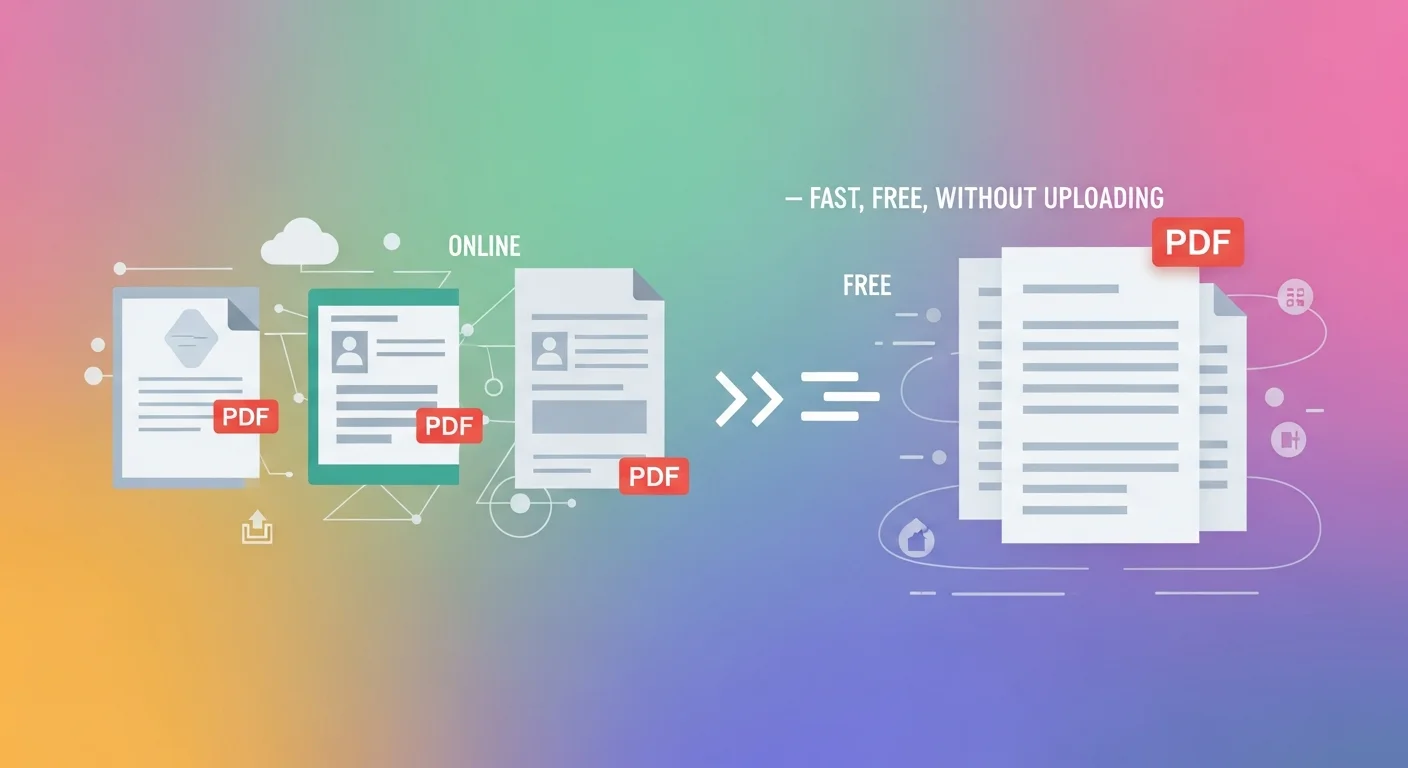
You've got three separate PDFs — a cover letter, a resume, and a portfolio — and you need to send them as a single file. Or maybe you have a dozen scanned pages saved as individual PDFs that should really be one document.
Merging PDFs sounds simple, but most tools make it annoying: upload limits, forced sign-ups, watermarks on the output, or worse — your private documents sitting on someone's server.
This guide shows you how merging PDF files actually works, when to use it, and how to do it in a way that keeps your documents completely private.
Why People Need to Merge PDFs
Combining multiple PDF files into one is one of the most common document tasks in professional life. A few everyday scenarios:
- Job applications — Cover letter + resume + references + portfolio in one clean attachment.
- Legal submissions — Multiple signed agreements or exhibits submitted as a single filing.
- Business reports — Monthly data exports combined into a quarterly summary document.
- Academic submissions — Research paper + appendices + bibliography in one file.
- Scanned documents — Physical papers scanned page by page that belong as a single document.
The need is universal. The frustration is that most tools online add friction, watermarks, or file size limits.
How PDF Merging Works
When you merge PDFs, the tool reads each file's internal page structure and concatenates them in sequence. Here's what happens at a technical level:
- Each PDF contains a page tree — a structured list of all pages and their content streams.
- Merging stitches these page trees together into a single document with a unified page count.
- The output PDF preserves each source file's fonts, images, links, and formatting exactly.
The key thing to understand: merging doesn't flatten or re-render anything. The pages in your output file look exactly like they did in the originals.
Merge Your PDFs Here
Select your files, drag them into order, and combine them into one. No account required.
PDF Merge
Combine multiple PDF files into a single document instantly and privately.
What to Watch Out For When Merging
File order matters. Most tools let you drag and reorder files before merging. Double-check the sequence before you click combine — you don't want your appendix appearing before your main report.
Password-protected PDFs won't merge directly. If any of your source files are password-protected, you'll need to remove the password first, then merge.
Large files slow things down locally. If you're combining ten 50MB PDFs in your browser, expect a few seconds of processing time. This is normal — it's doing real work on your device.
Check the output. After merging, scroll through the combined PDF to confirm page order and that nothing looks off before sending.
Need to Do the Opposite? Split a PDF Instead
Sometimes you need to work in reverse — extract specific pages from a large PDF, or split one document into several smaller ones. That's a separate operation with its own tool.
PDF Split
Split a PDF into multiple files or extract specific pages instantly and privately.
Privacy: Why It Matters Where You Merge PDFs
Most free online PDF tools work by uploading your files to their servers to process them. For casual personal use, that's an inconvenience. For business documents, it can be a real problem.
Consider what's often inside the PDFs people merge:
- Employment contracts and salary information
- Client proposals and NDA-protected business plans
- Medical records and financial statements
- Legal agreements with personal identifying information
Rules around this vary by region:
- In the EU (GDPR): Documents containing personal data — names, addresses, financial figures — are regulated. Sending them to a third-party server requires a data processing agreement. Most free PDF tool providers don't offer one.
- In the US (CCPA and HIPAA): Healthcare documents and California consumer data have specific protections. Processing them through unverified online tools creates liability.
- In India (DPDP Act): Personal data must be processed with safeguards. Uploading sensitive documents to foreign servers without controls doesn't meet this standard.
FluxToolkit's PDF Merger runs entirely in your browser. Your files are read using the HTML5 File API on your own device — they're never uploaded to any server, and nothing is stored after you close the tab.
Frequently Asked Questions
How many PDF files can I merge at once?
There's no hard limit — you can combine as many files as your device's memory can handle. For most users, merging 10–20 files works without any issues.
Does merging PDFs affect quality?
No. Merging is a structural operation — it joins page trees without re-rendering anything. Text sharpness, image resolution, and formatting are preserved exactly as they appear in the source files.
Can I merge password-protected PDFs?
Not directly. Password-protected files need to be unlocked first. Use a PDF password remover to unlock them, then merge the unlocked copies.
Is there a file size limit?
Since everything runs in your browser, the only limit is your device's available memory. Files up to several hundred megabytes work fine on most modern computers.
Does FluxToolkit store my PDF files after merging?
No. Your files are processed entirely in your browser's memory and discarded when you close or refresh the page. Nothing is uploaded, logged, or retained.