Take a look at the navigation bar of your website. If the little "Home", "User", or "Settings" icons are .png files, you are unnecessarily degrading your user experience.
In the early 2010s, creating CSS sprites out of PNG files was the standard way to handle UI iconography. But today, using a raster format (like PNG or JPG) for a simple UI icon is widely considered an anti-pattern.
Here is exactly why you need to stop using PNGs for UI elements, and why SVG (Scalable Vector Graphics) is the only format you should be using.
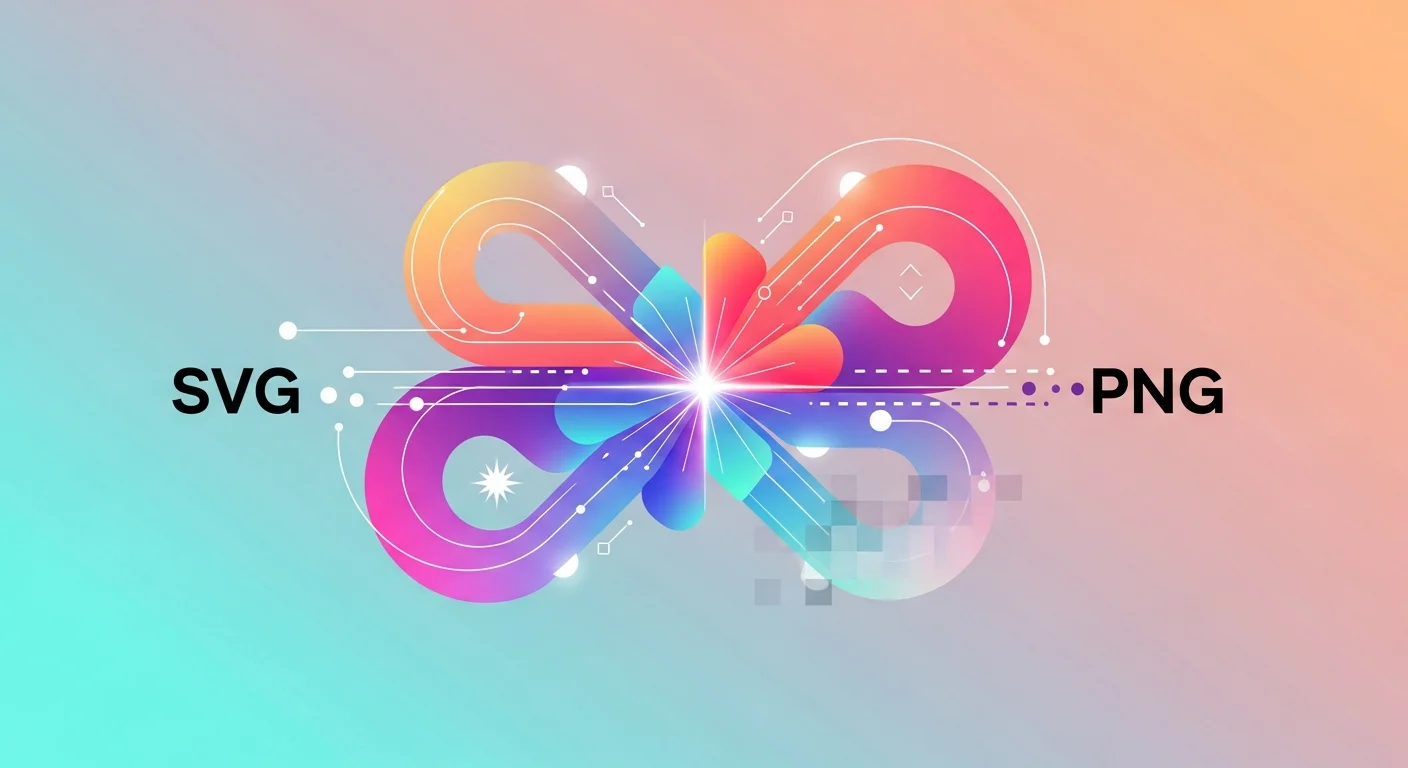
The Core Difference: Pixels vs. Math
To understand why SVG dominates, you must understand how the two formats render images on a screen.
Raster Graphics (PNG)
A PNG is a raster image. This means the image is made up of a fixed grid of tiny colored squares called pixels. If you save a PNG icon at 24x24 pixels, the file contains exactly 576 data points telling the computer what color each pixel should be.
Vector Graphics (SVG)
An SVG is a vector graphic. It doesn't contain pixels. Instead, it contains mathematical formulas written in XML. An SVG tells the browser: "Draw a black circle with a radius of 12, then draw a line through the center."
1. Infinite Scalability (The Retina Problem)
When you take a 24x24 pixel PNG and scale it up to 100x100 pixels, the browser has to guess what to put in the missing gaps. The result? A blurry, pixelated, amateur-looking icon.
This became a massive problem when high-density "Retina" displays were introduced. A 24x24 PNG looks terrible on a modern iPhone because the screen actually has triple the pixel density. To fix this, developers had to create @2x and @3x versions of every single PNG, tripling their workload.
Because SVGs use math, they scale infinitely. Whether the icon is 10 pixels wide or on a 4K billboard, the browser recalculates the math perfectly. It will always be 100% crisp.
2. File Size and Core Web Vitals
PNG files are heavy because they have to store data for every pixel, including the transparent ones.
SVGs are incredibly lightweight because they are just text. A typical UI icon in SVG format is often less than 1 KB.
By switching from PNG to inline SVGs:
- You eliminate multiple HTTP requests (the browser doesn't have to fetch the image file; the SVG is already inside the HTML).
- You drastically lower your page weight.
- You improve your Largest Contentful Paint (LCP) metric for SEO.
Note: If you have massive photographs, PNG and WebP are still required. You can use our Image Compressor to shrink those. But for icons, SVG wins every time.
3. Dynamic CSS Styling
This is the killer feature of SVGs.
If you use a PNG for an icon and want it to turn blue when the user hovers over it, you must:
- Open Photoshop/Figma.
- Change the color to blue.
- Export a second file called
icon-blue.png. - Write JavaScript or CSS to swap the images on hover.
If you use an inline SVG, you can style it dynamically with CSS, exactly like text.
<!-- The SVG inherits the color from the parent! -->
<div class="text-gray-500 hover:text-blue-500 transition-colors">
  <svg fill="currentColor" viewBox="0 0 24 24">
    <path d="..." />
  </svg>
  <span>Settings</span>
</div>
With fill="currentColor", the SVG automatically matches the text color. One file, infinite colors.
4. Accessibility and DOM Interaction
A PNG is a black box to a screen reader. You can add an alt tag, but that's the limit of its accessibility.
Because SVGs are HTML-like nodes in the Document Object Model (DOM), you can interact with their internal parts. You can add <title> tags inside the SVG for screen readers, or use CSS to animate individual pieces of the icon (like making a bell icon actually "ring" back and forth on hover).
How to Make the Switch Today
If you are convinced to make the switch but don't know where to get SVG versions of your icons, we've made it incredibly easy.
Instead of hunting down old design files or paying for a premium subscription, you can use the FluxToolkit
Our library aggregates over 150 of the world's best open-source SVG icon sets. You can:
- Search for any icon you need.
- Customize the size and padding visually.
- Click "Copy SVG" and paste the pure, optimized math directly into your codebase.
Frequently Asked Questions
Is there ever a reason to use a PNG for an icon?
Only in very specific edge cases. If you are building an email template, some legacy email clients (like Outlook 2007) do not support SVGs. In that scenario, a highly compressed PNG is safer. Also, if the "icon" is actually a photorealistic 3D render with millions of colors, PNG/WebP is the correct format.
Does converting a PNG to SVG work?
There are tools online that "trace" a PNG and convert it to an SVG. However, the results are usually terrible. The tracing algorithm generates thousands of unnecessary vector points, resulting in an SVG file that is actually larger than the original PNG. It is always better to find a native vector icon from an open-source library.
Do SVGs slow down the DOM?
If you have an incredibly complex SVG (like a highly detailed illustration with thousands of paths), embedding it directly in the HTML can slow down the browser's rendering engine. In those specific cases, it is better to link to the SVG as an external image (<img src="illustration.svg" />). But for simple UI icons, inline SVGs are completely safe and highly performant.